Adding Awesome Websites To Your Chrome App Launcher
Add all your favorite websites to Chrome's App Launcher. So in your launcherhttps://chrome.google.com/webstore/launcher, you have all these lovely links to usef

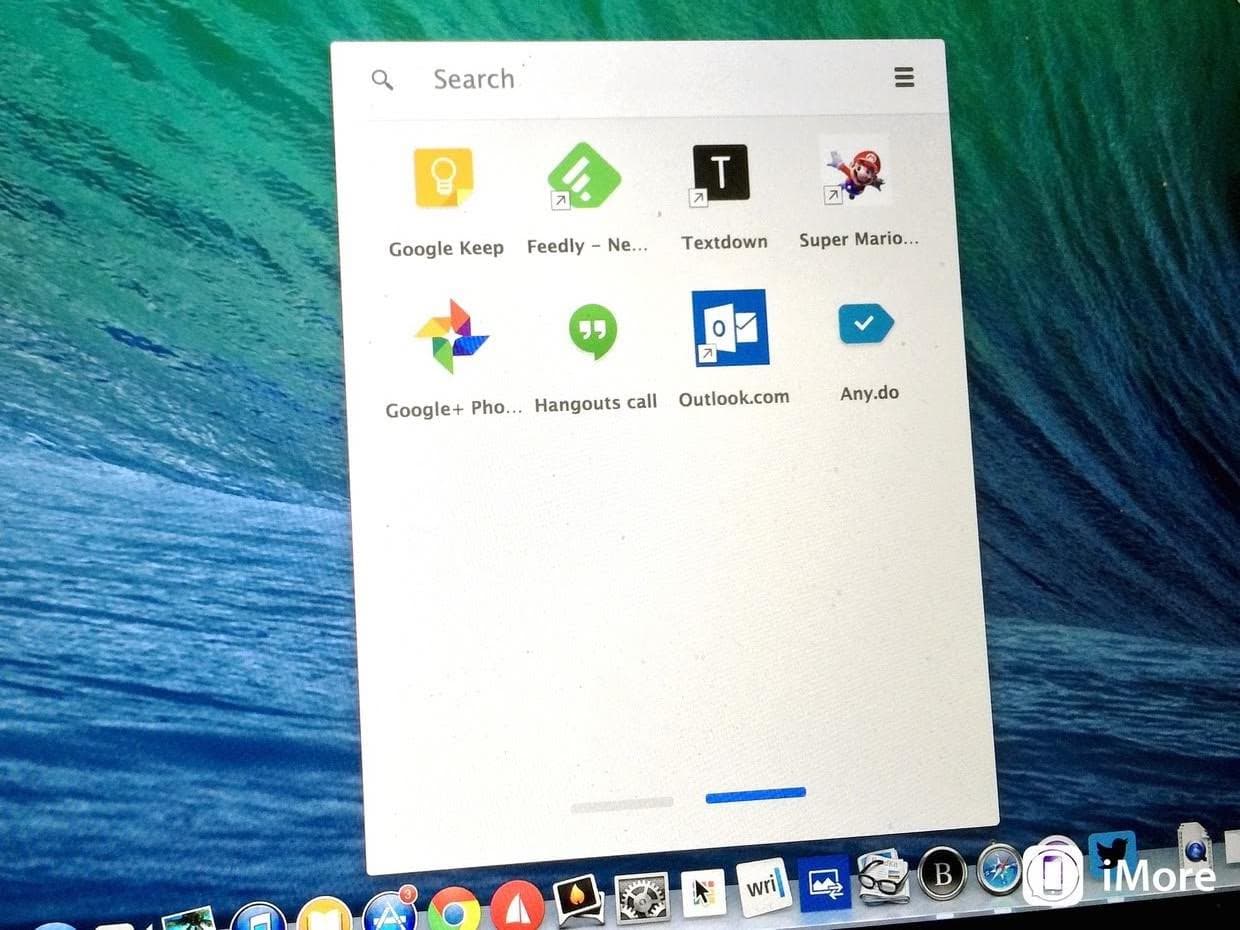
Add all your favorite websites to Chrome's App Launcher.
So in your launcher, you have all these lovely links to useful Google Apps and any apps you can find in the Chrome Web Store.
 🔍 zoom
Unfortunately, if you have a website you visit regularly but isn’t available in the Chrome Web Store, there’s not much you can do. You can always use bookmarks, but if you’re like me, you know too many bookmarks tend to suck and end up just being a useless clutter of links you never end up actually benefitting from. So all in all, it looks like clutter and a ridiculous # of bookmark folders are your best options.
🔍 zoom
Unfortunately, if you have a website you visit regularly but isn’t available in the Chrome Web Store, there’s not much you can do. You can always use bookmarks, but if you’re like me, you know too many bookmarks tend to suck and end up just being a useless clutter of links you never end up actually benefitting from. So all in all, it looks like clutter and a ridiculous # of bookmark folders are your best options.
 🔍 zoom
**UNLESS YOU COULD ADD YOUR OWN LINKS TO THE APP LAUNCHER.DUN DUN DUN…………………**Tutorial time.
🔍 zoom
**UNLESS YOU COULD ADD YOUR OWN LINKS TO THE APP LAUNCHER.DUN DUN DUN…………………**Tutorial time.
Things You’ll Need
icons below were created using this Pixel Icon Generator
🔍 zoom Chrome (derp)
🔍 zoom A text editor (I prefer Sublime Text)
🔍 zoom Google-fu (Just a little!)
Step 1
Choose which website you want to add! 😍I chose One Page Love, which is a One Page website design gallery showcasing the best Single Page website designs from around the web.
🔍 zoom
Step 2
Create a folder with he name of the site you want to add to your Chrome App Launcher.
🔍 zoom> You’re going to end up having two files with each folder/app you create:
- manifest.json which holds all the information about your app - .png file which is going to be a 128x128 icon that will represent your website
The png can actually be any size, but 128x128 is ideal. You’ll need both for this to work (there can be errors!).
Step 3
Open up your text editor and type in the following: {
"manifest_version": 2,
"name": "One Page Love",
"description": "One Page Love is a One Page website design gallery showcasing the best Single Page website designs from around the web.",
"version": "1.0",
"icons":
{
"128": "onepagelove.png"
},
"app":
{
"urls":
[
"//onepagelove.com/"
],
"launch":
{
"web_url": "//onepagelove.com/"
}
},
"permissions":
[
"unlimitedStorage",
"notifications"
]
}
The above example works with the One Page Love website.
🔍 zoom
Step 4
There are 4 variables you’re going to change to work for your website in the above code:
- name : site title - description : site description - 128 under icon : png file name - urls under app and the web_url under launch : site url
A handy tip to get the description for the website fast is by using the query info:onepagelove.com in Google which will provide information about the url. No spaces, or else it doesn’t work.
🔍 zoom
Step 5
Now save this file that you’ve edited to work with your website as manifest.json into the folder you created in Step 2.
Step 6
Time to get your icon!> You can accelerate your search by going to Search tools > > > Size > Exactly... > Width: 128 px, Height: 128 px and then by typing in filetype:png into the Google search to select specifically for PNG files.
🔍 zoom
🔍 zoom
Step 7
You’re ready to add the extension! Head over to chrome://extensions or use your toolbar to get there.
🔍 zoom> Click Load unpacked extension...Choose the folder with your files that you created Step 4.
Step 8
Your website will now show up in the extensions!
🔍 zoom> And once it shows up in your extensions, it’ll also show up in the Chrome App Launcher.
🔍 zoom> That’s it. Congratulations! 😊