Launch A Todo App Using Laravel Homestead
Our goal? To launch a simple to-do app using Laravel Homestead on macOS. ✅️ I created a simple to-do app in Laravel 5.3 using Homestead as part of an engineerin

Our goal? To launch a simple to-do app using Laravel Homestead on macOS. ✅️
I created a simple to-do app in Laravel 5.3 using Homestead as part of an engineering internship screening for DoSomething.org. In the end, nothing really came of it. 💀️
 🔍 zoom🔍 zoom
 🔍 zoom
The source code can be found at https://github.com/fvcproductions/ds-todos.The full process for setting up Laravel 5.3 is pretty tedious so I created my own tutorial which you can find below.
🔍 zoom
The source code can be found at https://github.com/fvcproductions/ds-todos.The full process for setting up Laravel 5.3 is pretty tedious so I created my own tutorial which you can find below.
Our goal? To launch a simple to-do app using Laravel Homestead on macOS.
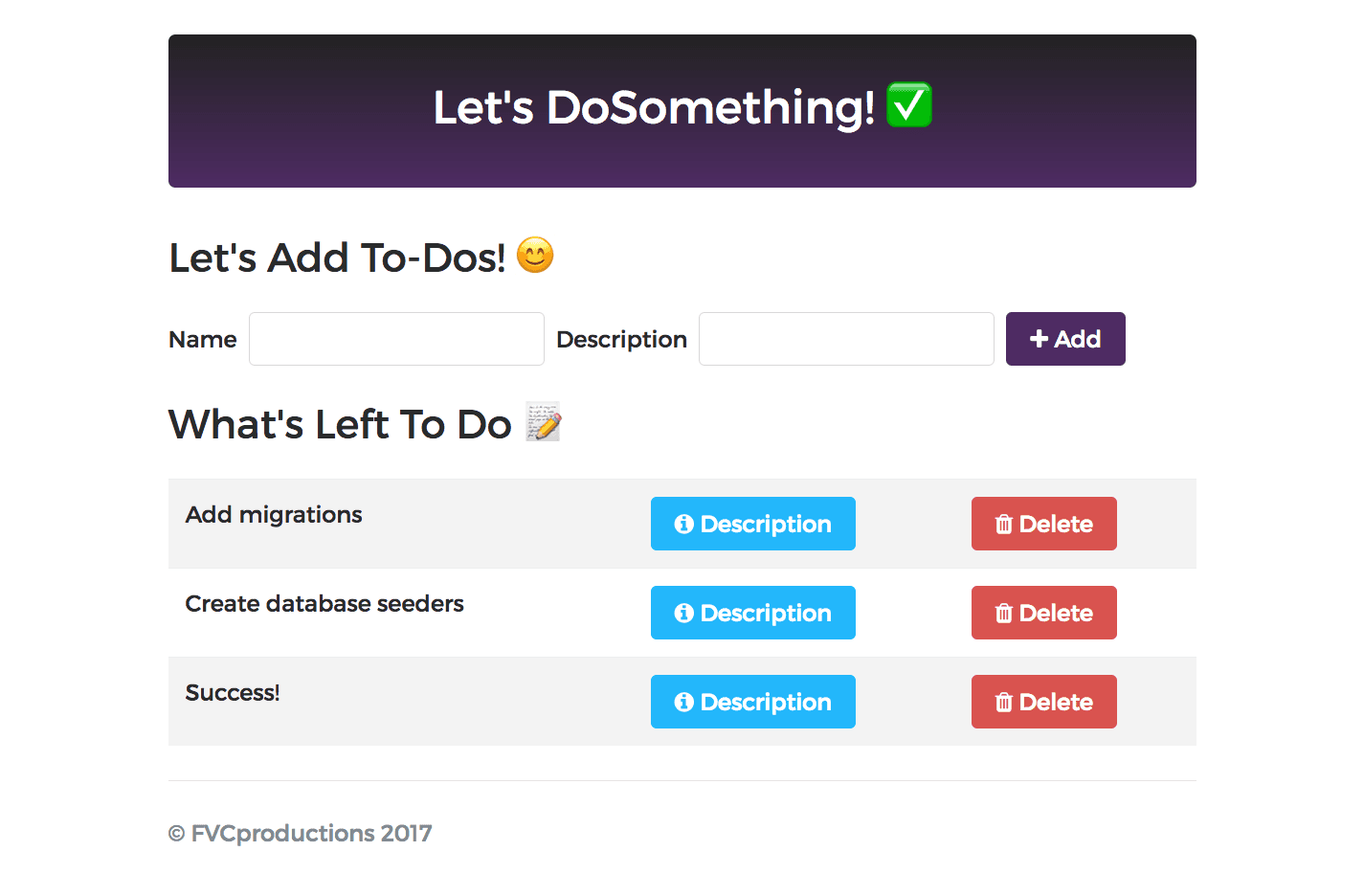
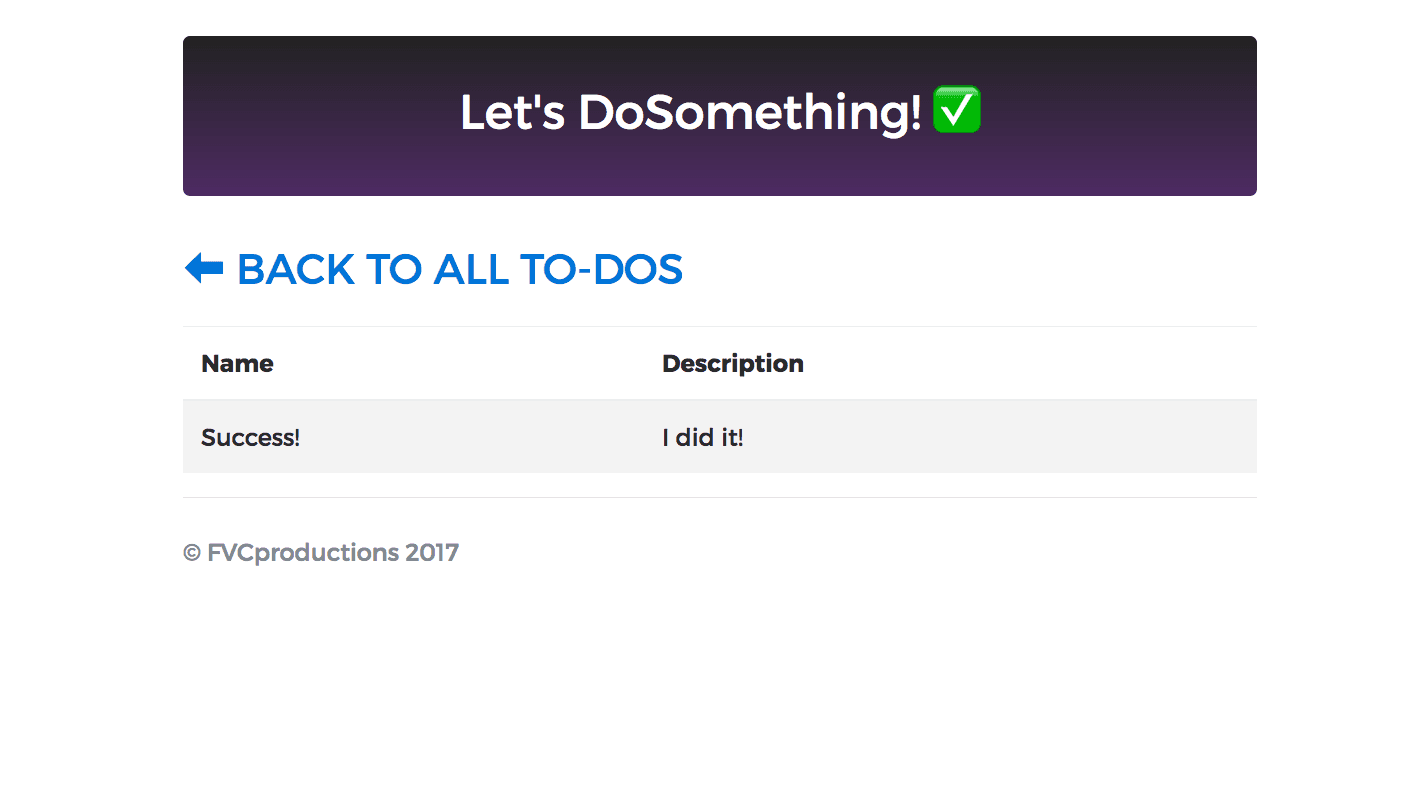
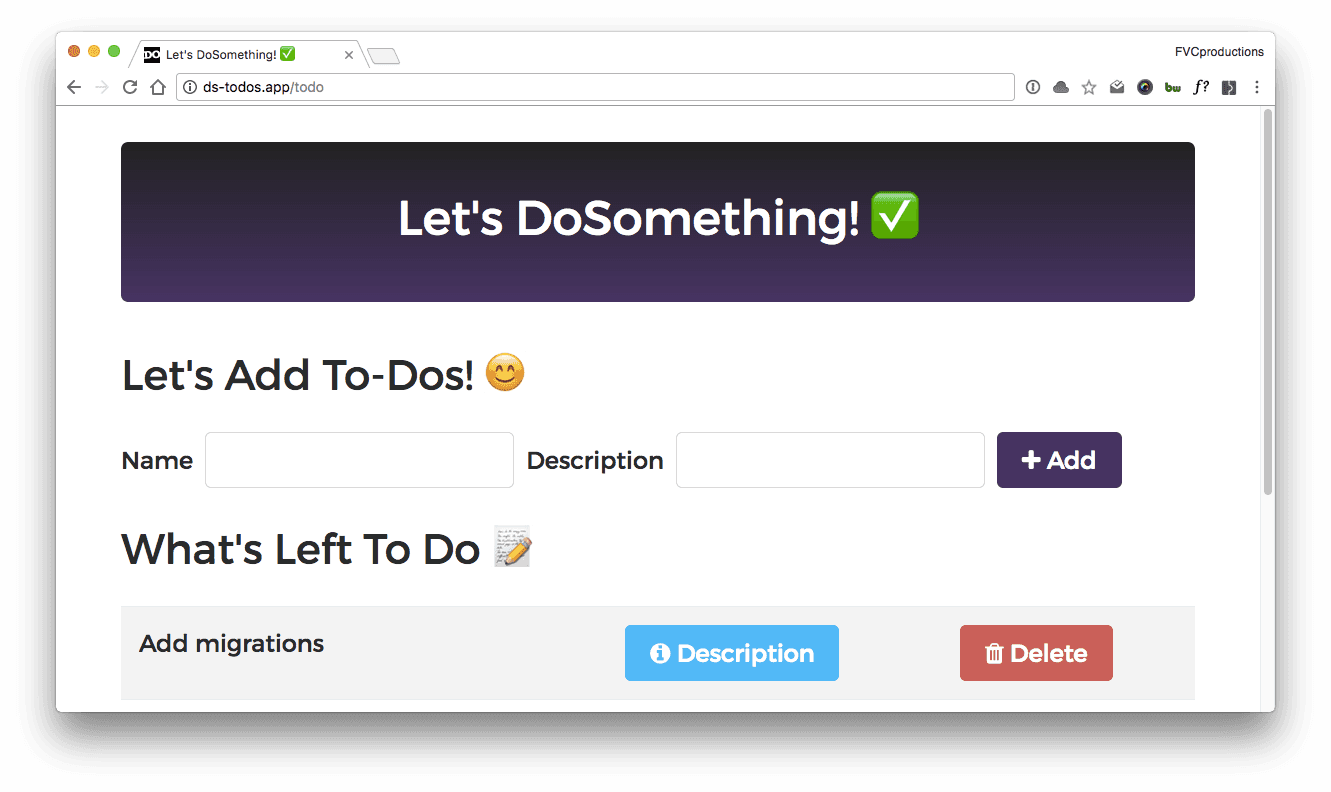
This is QUITE a tedious process (if you ask me), but I’ll try to condense it into a simple 30 step process (LOL). 😂This is how the completed app looks like.
You will need…
- Basic Terminal Knowledge I will be referring to a lot of commands you’ll have to type in.
Installation Process
- Download Vagrant - Download VirtualBox - Clone or download my sample to-do app- Option 1. Use a GitHub client like Tower - Option 2. git clone //GitHub.com/fvcproductions/ds-todos.git- - Make note of the file path for this repo by using pwd, i.e. ~/Dropbox/GitHub/ds-todos - cd ~ && vagrant box laravel/homestead - They will ask for the provider so we are going to enter in 1 since we are using VirtualBox - cd ~ && mkdir Code We will need this folder later - Clone down Laravel Homestead and install it in a folder called Homestead usingcd ~ && git clone //GitHub.com/laravel/homestead.git Homestead - Initialize Homestead using cd Homestead && bash init.sh - While still in ~/Homestead folder, sudo nano /private/etc/hosts to edit the hosts file and add on these two lines (refer below) - Create a key to authorize ssh using cd ~/Homestead && ssh-keygen -t rsa -b 4096 - Hit Enter twice (you don’t have to enter a password) - Time to start up Vagrant using cd ~/Homestead && vagrant up and enter password when asked - Edit the Homestead.yaml file to configure locations of code using nano ~/.homestead/Homestead.yaml and make thefolder and sites sections look like this (refer below) ❗ Anytime you edit this Homestead.yaml file, you have to perform the next 3 steps in order for it to work, so let’s go ahead and do those now. - Stop vagrant temporarily by using vagrant halt - Reload yaml configurations by using vagrant reload --provision and enter password when asked - While still in ~/Homestead folder, use vagrant ssh to enter into your Vagrant setup - Enter into your Code folder you created earlier and then your ds-todos app using cd ~/Code/ds-todos - While you’re in your ds-todos folder, use composer install to install the necessary dependencies for the to-do app - You will also need to configure your environment for ds-todos by creating an .env file and typing the following in (refer below) using touch .env && nano .env - Use php artisan migrate to migrate the app data over - Then use php artisan db:seed to seed the database - Finally, use php artisan key:generate to generate an app key for security purposes - At this point, you should be able to head over to //ds-todos.app in your browser and marvel at being able to set this all up! 🎉
Optional - Compiling SASS
If you want to compile SASS files, you will first have to install all npm dependencies using npm i. Then just perform a gulp watch and you’re good to go. Anytime you edit the SASS files, gulp will check it and compile it down to CSS.
Hosts
192.168.10.10 homestead.app
192.168.10.10 ds-todos.app
YAML Config
❗ Since my ds-todos code is located in ~Dropbox/GitHub/ds-todos, that’s where I map it to. However, you probably have it located elsewhere so make sure to get the right file path of that app using pwd in Terminal.folders:
-
map: ~/Code
to: /home/vagrant/Code
type: "nfs"
-
map: ~/Dropbox/GitHub/ds-todos
to: /home/vagrant/Code/ds-todos
type: "nfs"
sites:
-
map: homestead.app
to: /home/vagrant/Code/Laravel/public
-
map: ds-todos.app
to: /home/vagrant/Code/ds-todos/public
[Environment Setup]
APP_ENV=local
APP_DEBUG=true
APP_KEY=SomeRandomString
APP_URL=//localhost
DB_CONNECTION=mysql
DB_HOST=127.0.0.1
DB_PORT=3306
DB_DATABASE=homestead
DB_USERNAME=homestead
DB_PASSWORD=secret
CACHE_DRIVER=file
SESSION_DRIVER=file
QUEUE_DRIVER=sync
REDIS_HOST=127.0.0.1
REDIS_PASSWORD=null
REDIS_PORT=6379
MAIL_DRIVER=smtp
MAIL_HOST=mailtrap.io
MAIL_PORT=2525
MAIL_USERNAME=null
MAIL_PASSWORD=null
MAIL_ENCRYPTION=null
Tags 🏷️